


Learn how to get the most out of OneHome, the client portal for connecting with your agents and making the home search an interactive, collaborative, and more rewarding experience.
Access OneHome anywhere, anytime.
You will always have access to OneHome to browse and view listings, and you are not required to activate your account. However, to get the most out of OneHome, activating your account is the first step.
Account activation unlocks additional features such as Favorites, Planner, and the PropertyFit™ tool. Having your own account lets you save any searches you’ve created and pick up exactly where you left off when you take OneHome on the go.
If you are having difficulty logging in, please refer to our article on Helping Client Signing up or Signing into OneHome. If you need additional help please contact your agent with any concerns.
See below for a video demonstration
Welcome to OneHome
The first email you received from your agent is your Welcome to OneHome!
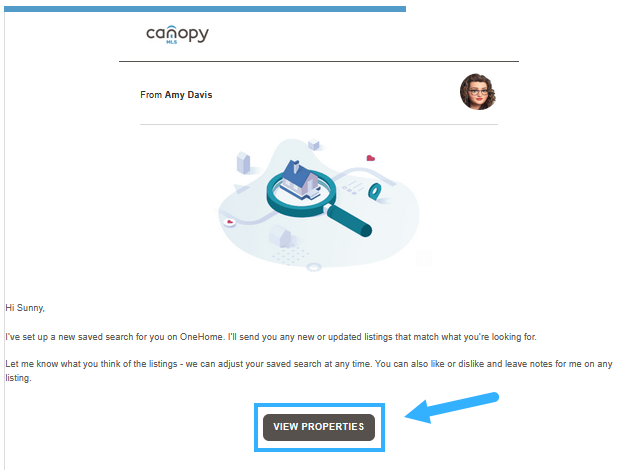
Click the View Properties button to see properties and to activate your OneHome account. This will also turn on the Auto Email that your agent has set up for you. This will allow new matches to be automatically sent to you as they become available. Nothing further will be sent unless you click on the View Properties button in your Welcome Email. When you click the button, it will open up your OneHome account. To unlock all tools, you will need to activate your account by adding in a password. You can still see all of the info without activating, but you won’t have access to tools like Favorite, Planner, etc.
Activate Account
In the upper right-hand corner, click Activate Account
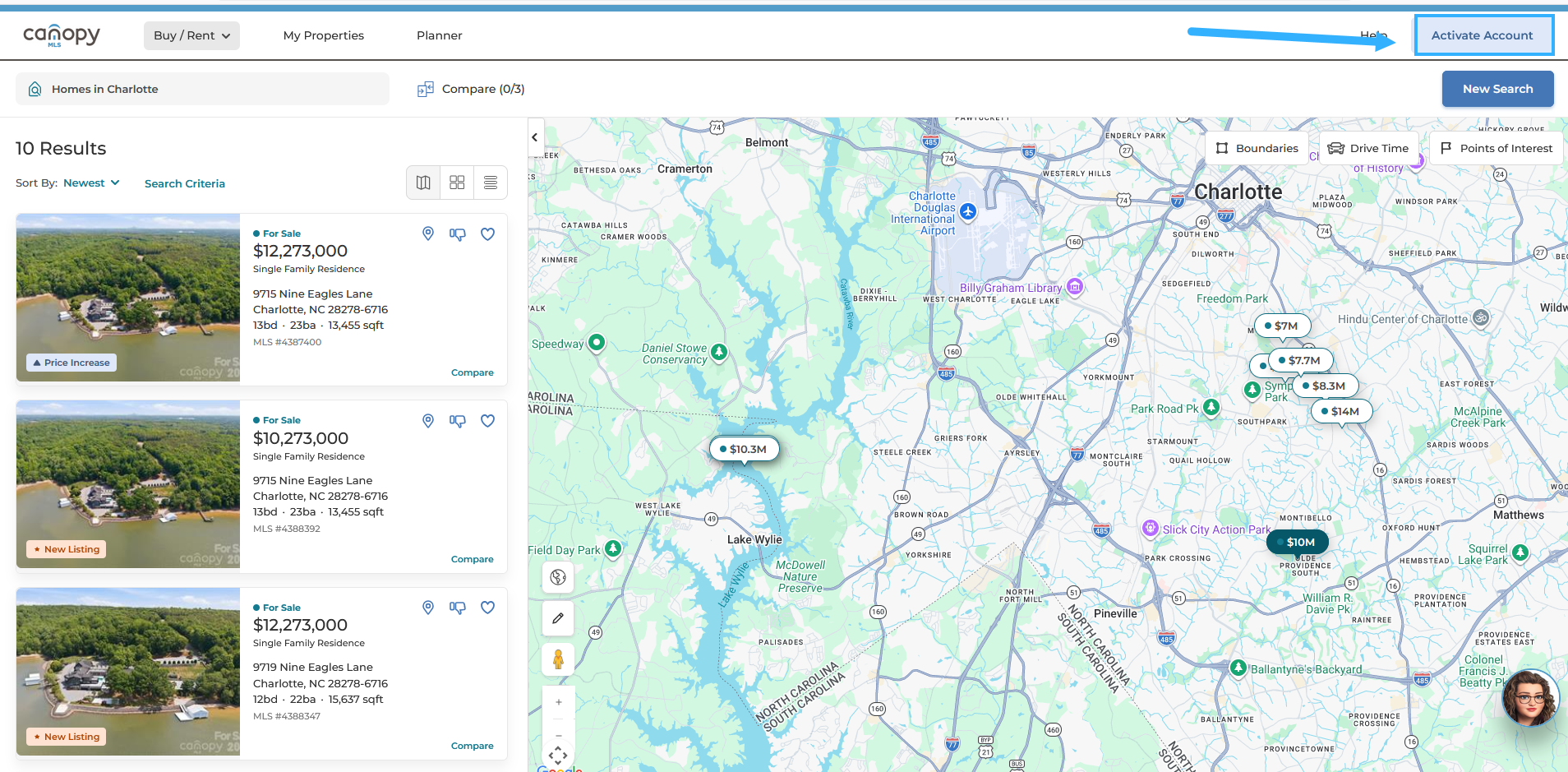
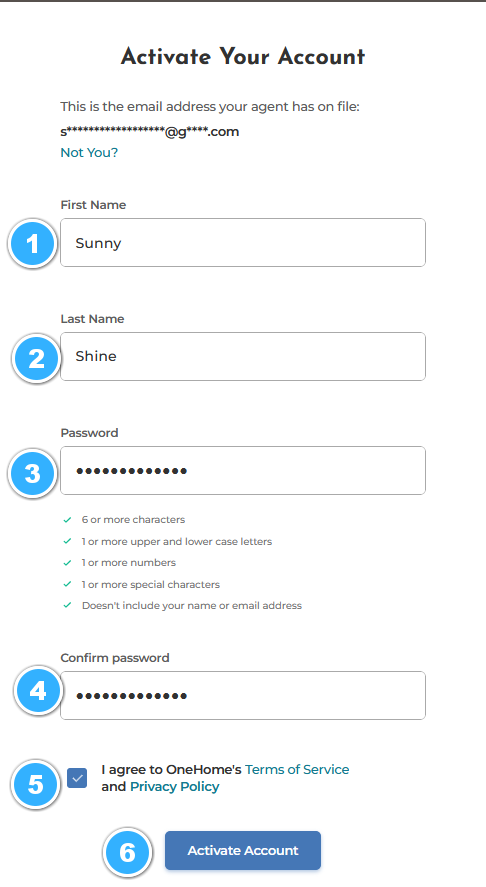
You’ll see part of your email address at the top of the activation screen – you’ll use that to sign in to OneHome once you’ve completed the activation process. Follow the numbered steps on the screenshot below.
- Enter your First and Last name
- Create a password using the guidelines, and enter it again to Confirm
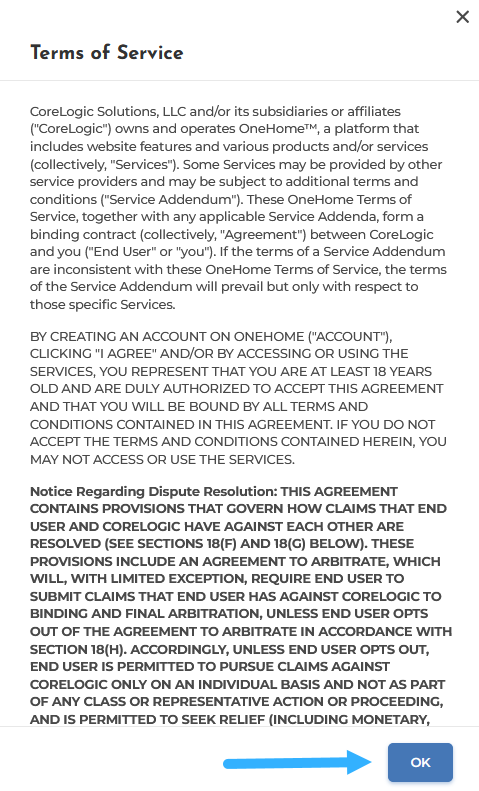
- Check the box to Agree to OneHome’s Terms of Service
- Click OK after reading the terms
- Click Activate Account
You’ll see a Welcome Aboard message when activation is complete. Your web browser may ask if you want to save your username and password.
Click the Sign In button

Enter your Email address and the Password you’ve just created
Click the Sign In button
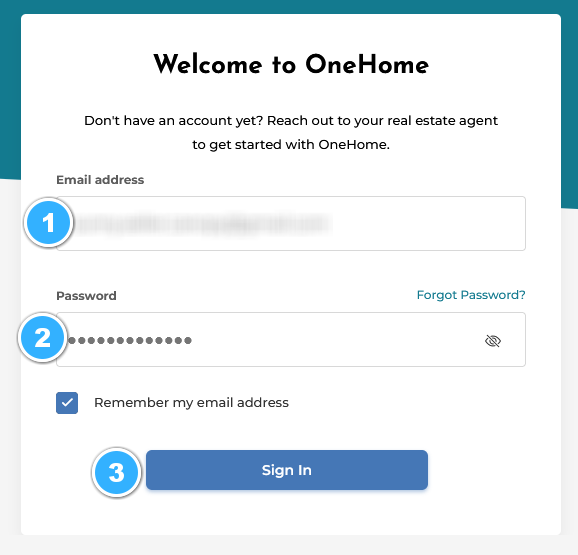
The next time you log in, all you’ll need to do is:
Click the View Properties button from your agent’s email
Click Sign In in the upper right-hand corner
Enter your email and password (if your browser has saved this login, it will appear automatically)
Click Sign In
When you sign in, you’ll see property results for the search your agent created, along with the PropertyFit questionnaire.
What is PropertyFit™?
PropertyFit helps you quickly sort out which homes match what you’re looking for. It displays a percentage next to each property to show how closely it matches your preferences. Keep your home preferences updated for the most accurate results (PropertyFit is not available for vacant lots or commercial properties).
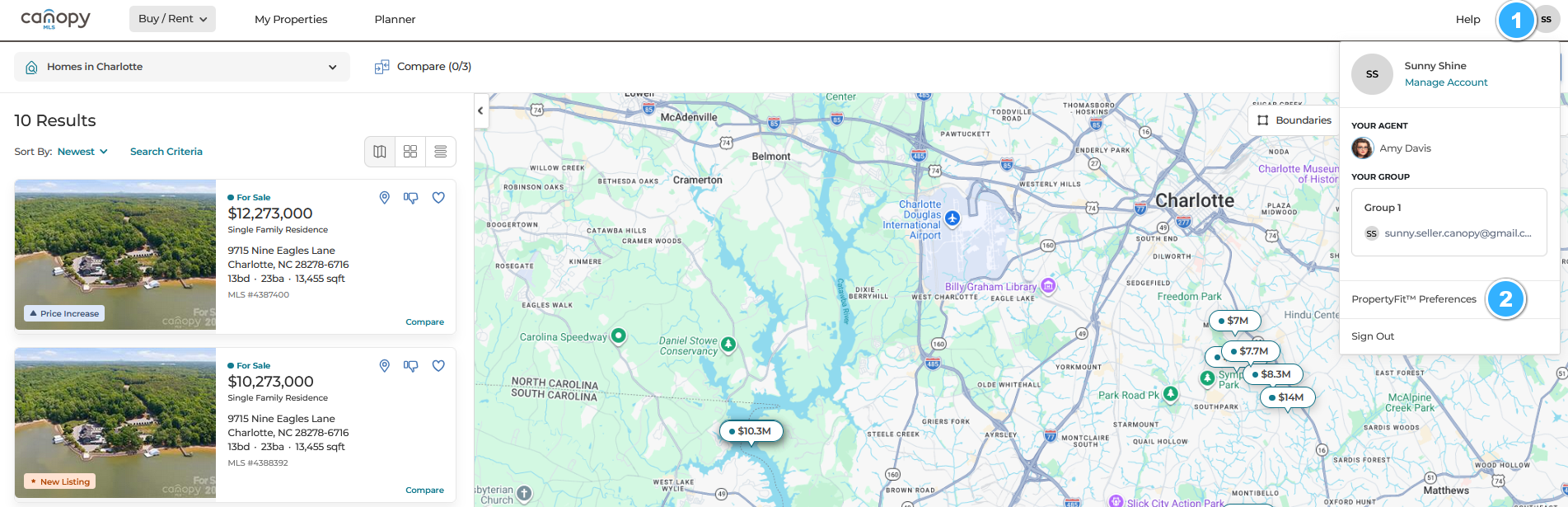
To set up your PropertyFit tool, click on your initials in the upper right-hand corner, and select PropertyFit Preferences. Make sure to save any changes.
View Properties – Quickly find what you’re looking for
OneHome makes it easy to find the right home for you. Your agent will help guide you by creating a search based on your criteria. You’ll see properties that match those criteria each time you visit OneHome.
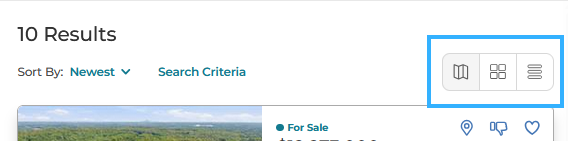
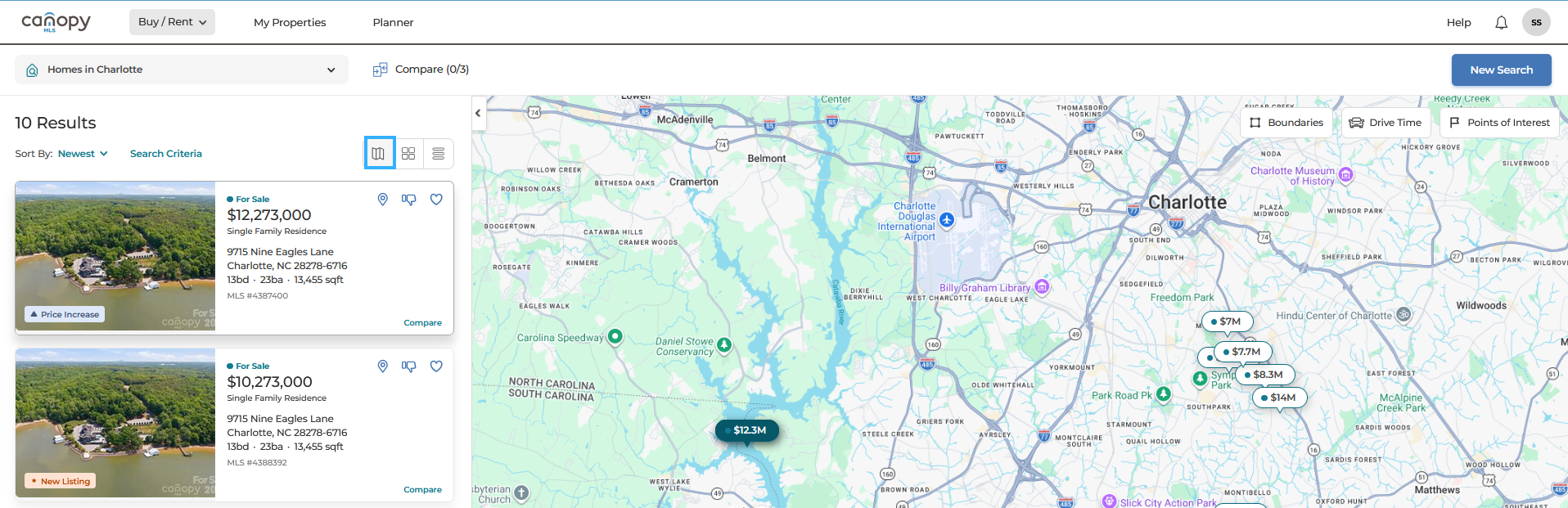
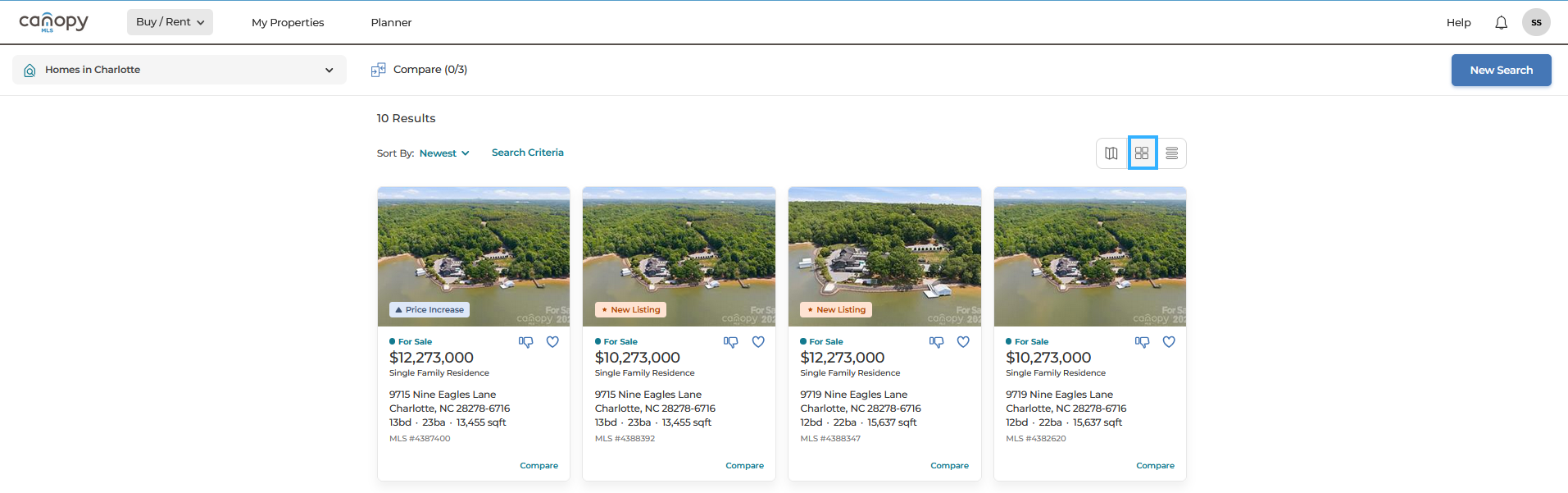
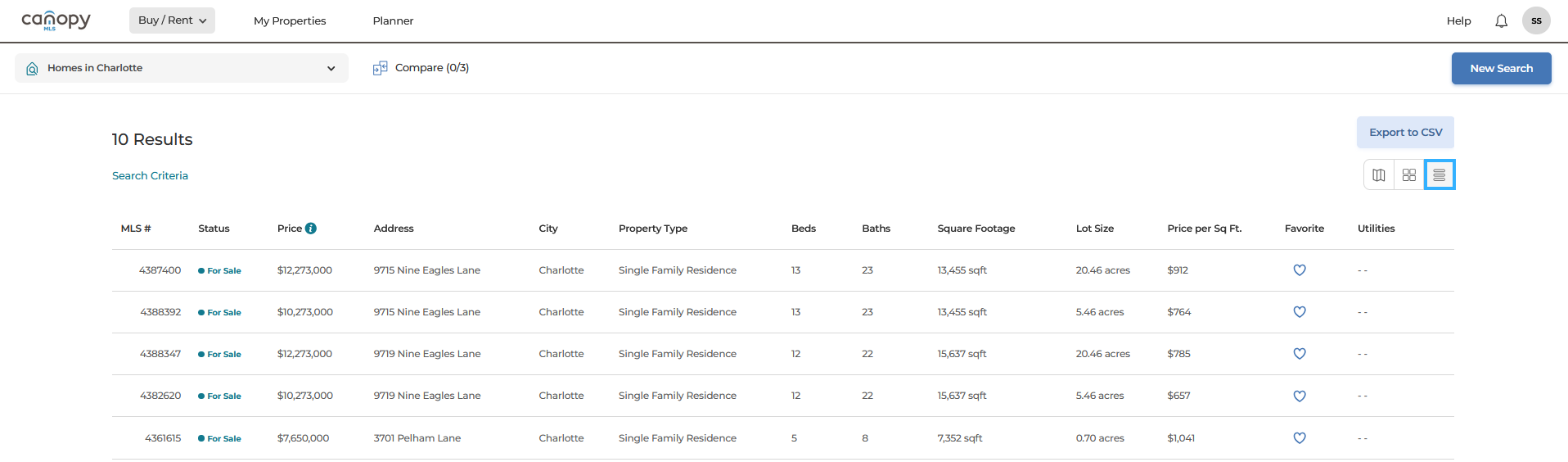
When you start browsing in OneHome, you can choose to view listings in a map, gallery, or list view. Click the buttons in the upper right-hand corner to easily switch between the views.
Note: If you are creating a new search on your mobile device, you’ll need to save your search results before you can switch to list view.
Favorites and “Not For Me”
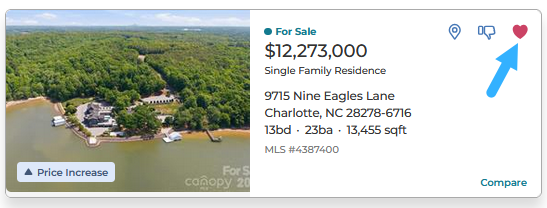
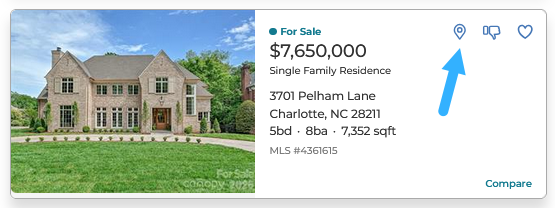
Select either the Favorites (heart) icon to add to your Favorites tab at the top of your OneHome page.
You can also click the Not for Me (thumbs down) icon to remove a property from the current collection.
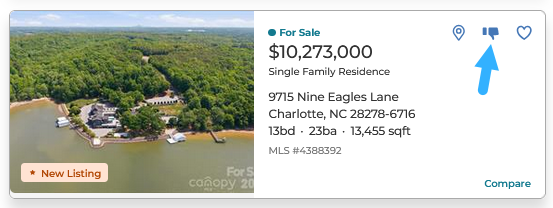
Refreshing the page will remove your Not For Me selections from the search results.
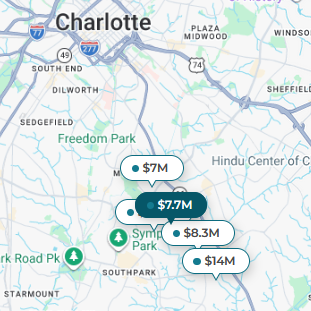
Click the Location (pin) icon to bold the property on the map.
Searching and filtering listing results
While you cannot edit your agent’s saved searches, you can always create your own. Whether you’re looking to buy or rent, you can select from the available criteria, and then apply them to view your results.
You can always search in OneHome, but with an activated account, you can also save your searches to quickly return to listings that match your criteria.
Search
Click on New Search in the upper right-hand corner

Start by entering an address, neighborhood, City or Zip code, or use the pencil icon to draw a shape on the map
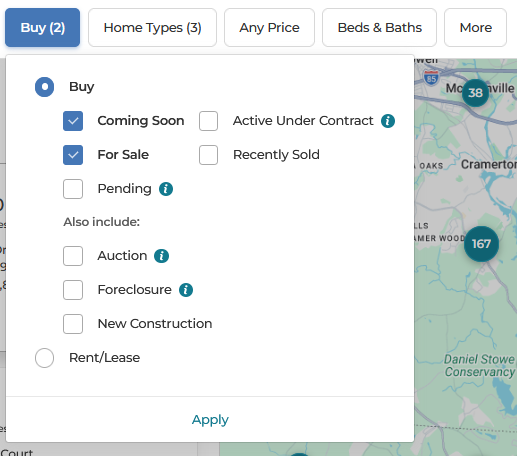
Next, click the Buy button
For Sale and Coming Soon will be selected by default. You can also select Under Contract, Pending, Recently Sold, Auction, Foreclosure, New Construction, or For Rent/Lease.
Click Apply to save selection
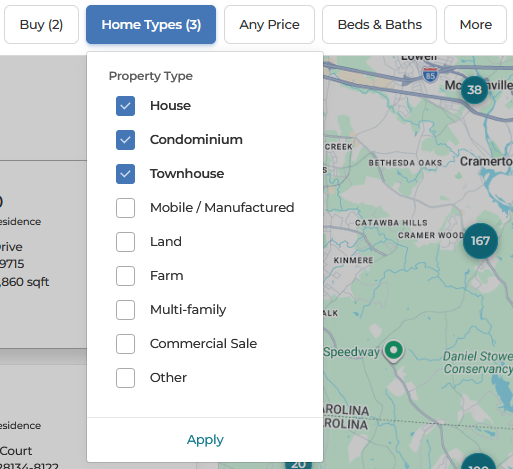
Click on Home Types (House, Condominium, and Townhouse are the default settings). Check or uncheck the box next to the property type(s) you are searching for.
Click Apply to save your selections
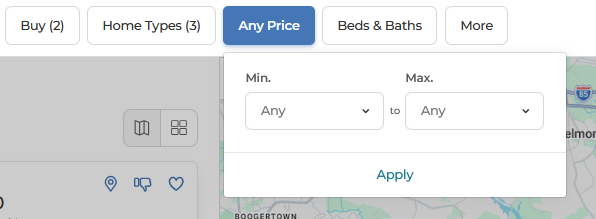
Click the Any Price button to set your price range
Enter a minimum and/or maximum price and click Apply to save selection
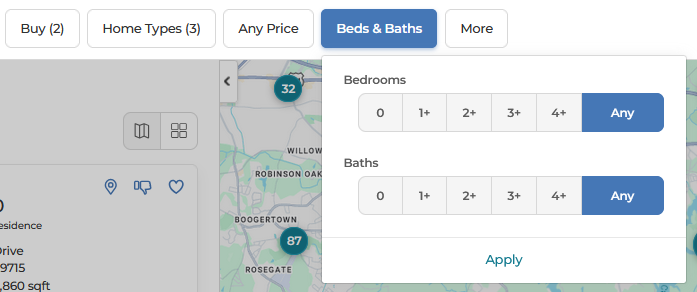
Click the Beds & Baths button
Click the number indicating the minimum number of bedrooms and bathrooms you need. For example, 3+ will mean 3 or more bedrooms. Click Apply to save your selections.
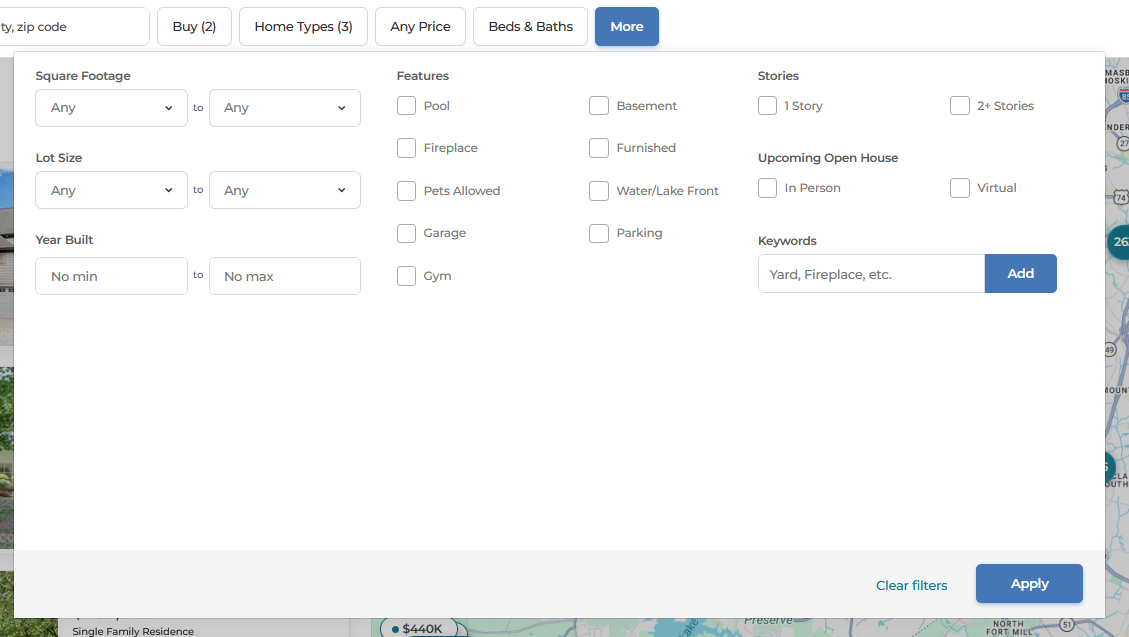
Click the More button to add:
The minimum and/or maximum living area of square footage you’re interested in
Lot Size
Year Built
Features
Stories
Features
Other keywords to “Add” to your search
Click Apply to save your selections
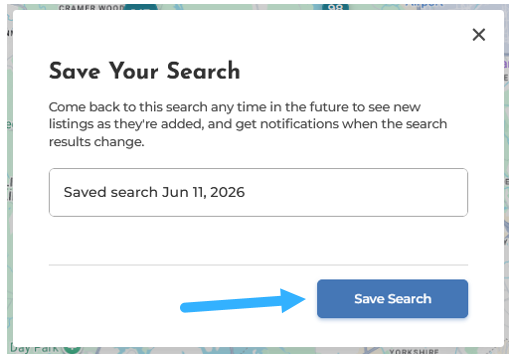
Click the Save Search button

You can use the system-generated search name, which includes the current date, or you can
customize the search name.
When finished, click the Save Search button
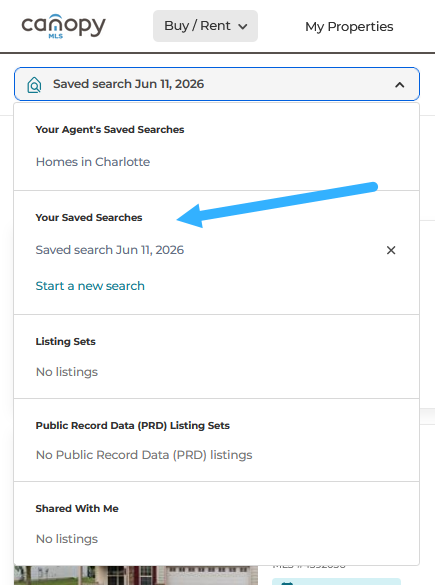
Find your Saved Searches by clicking the Buy/Rent tab and selecting Properties, or on the homepage by clicking the drop-down menu in the upper left-hand corner.
Every Detail Counts
When it comes to finding the right home, you need key information to make the best decision. OneHome makes it easy to find that information.
You’ll see important information right on the listings page, such as an overview of the property, property features, the number of beds, baths, and square footage right at the top.
Curious for more property details? OneHome can show you information about:
Interior details: information about the types of bathrooms, the number of floors in the home, type of basement, appliances, and other useful information about the interior of the home
Exterior details: lot size, porches and patios, parking options, the style of the home, and more
Note: OneHome will only show these details if the information is available
OneHome can even show granular information about the details of the rooms in a home, such as:
Room details: type of room (such as kitchen, living room, and bedroom), along with information about square footage and where that room is located.
Public Record information: look through public record information by scrolling down on the property detail page. OneHome will display details about a property’s tax and price history, and sometimes more.
Note: OneHome will only show these details if the information is available
Talk to your agent today to help you make the most of your OneHome experience!

